
Prepare a sermon
- Find the key passage.
- Highlight and annotate.
- Add verses to a Subject.
- Import existing research.
- Reorder and export.
COGUA Ministry App for iPhone and iPad
Follow step-by-step instructions for signing in, studying Scripture, organizing notes, recording sermons, finding churches, working with files, and communicating through the app.
Role-based instructions
The guide will show the features available to that role.
Dashboard, media, study, communication, files, directories, events, and Sermon Studio.
First-time setup
Complete these steps once, then use the guide as a searchable reference.
Update from the App Store, then use the email tied to your approved account.
Receive ministry announcements, messages, and chat alerts.
Check messages, announcements, Important Info, and your main shortcuts.
Confirm your ministry material loads, then open the bundled KJV.
App instructions
Search a word like “record,” “highlight,” “upload,” “CarPlay,” or “password.”
Use the email address associated with your COGUA access. New accounts remain Pending until they are reviewed and assigned a role.
About 3 minutesThe app does not currently contain a password-reset screen. Use the official Support page.
Tap your photo to open your directory profile and change your picture.
The badge shows new notices. Open it for announcement history.
The unread badge leads to your direct conversations.
Open every study, media, community, and file destination.
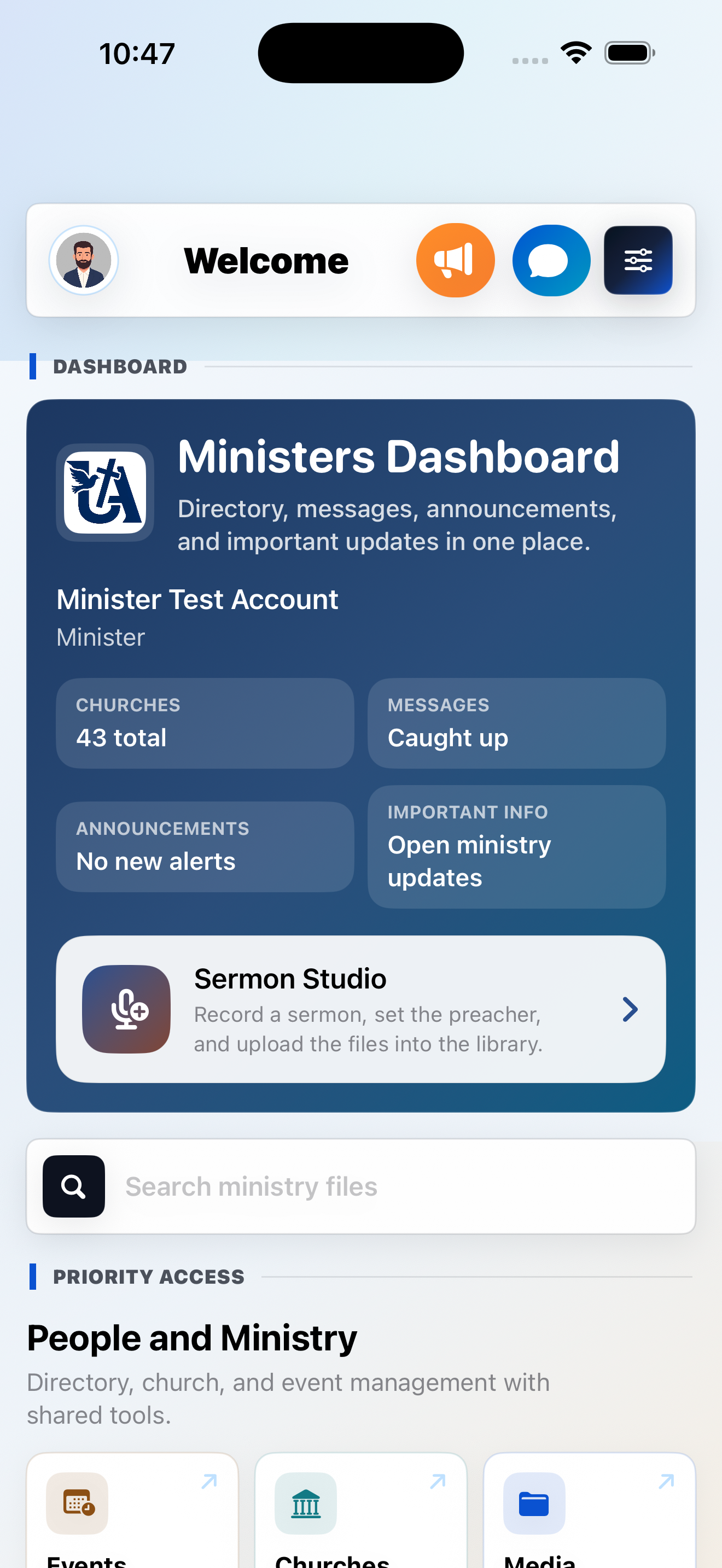
The large dashboard card summarizes churches, messages, announcements, and Important Info. Use Search ministry files to find accessible audio, video, and documents without browsing every folder.
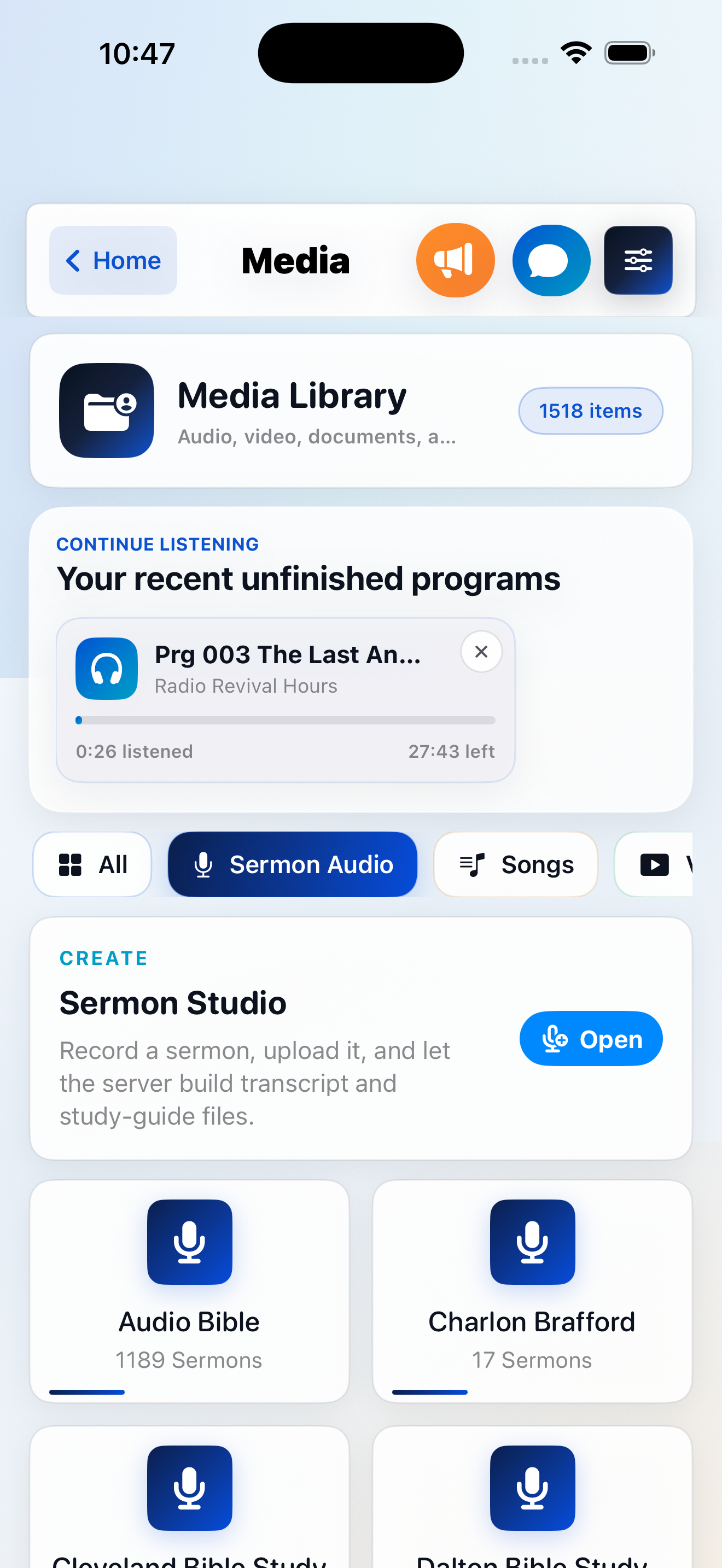
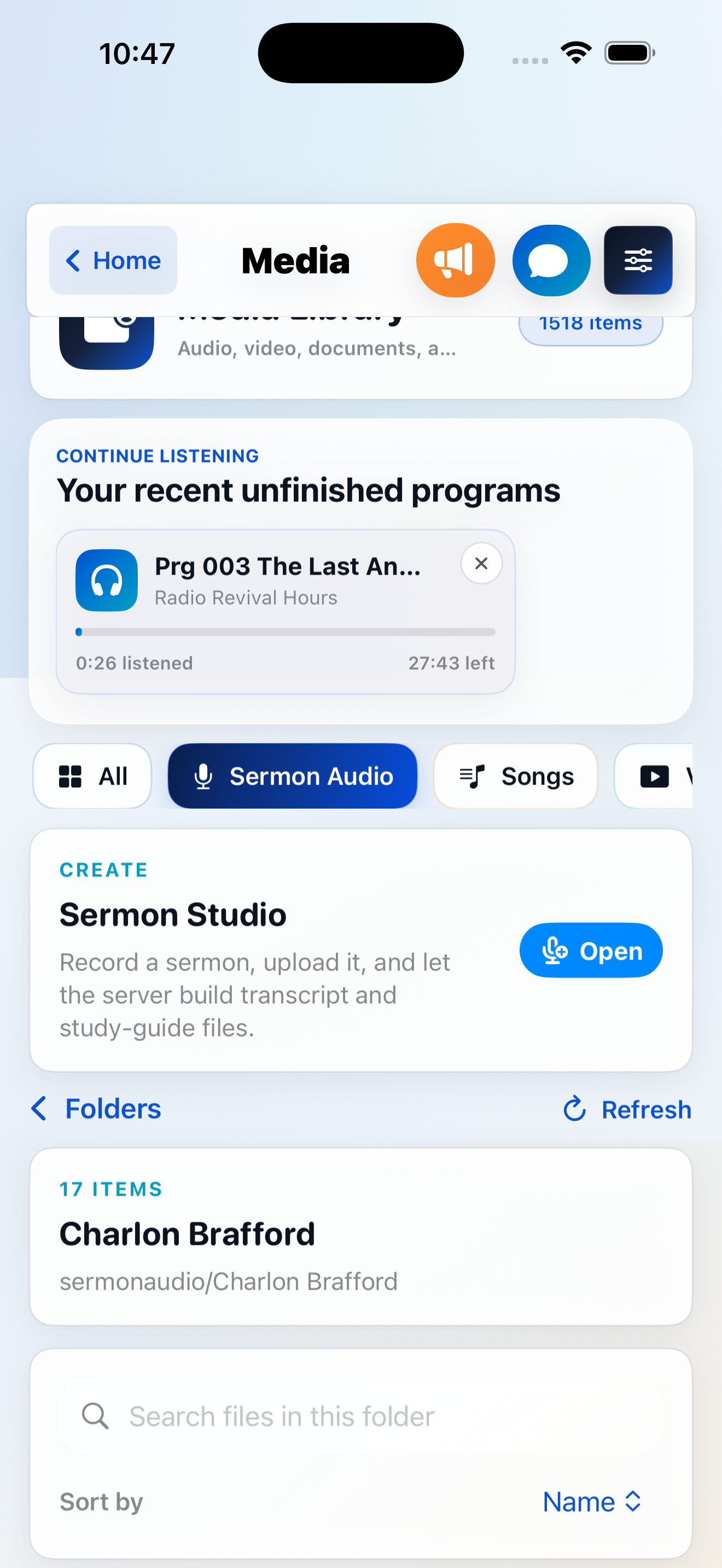
The app shows categories that contain material available to your account. Common categories include All, Sermon Audio, Songs, Videos, and Documents.
Media is assigned by account and role. Different libraries can both be correct.
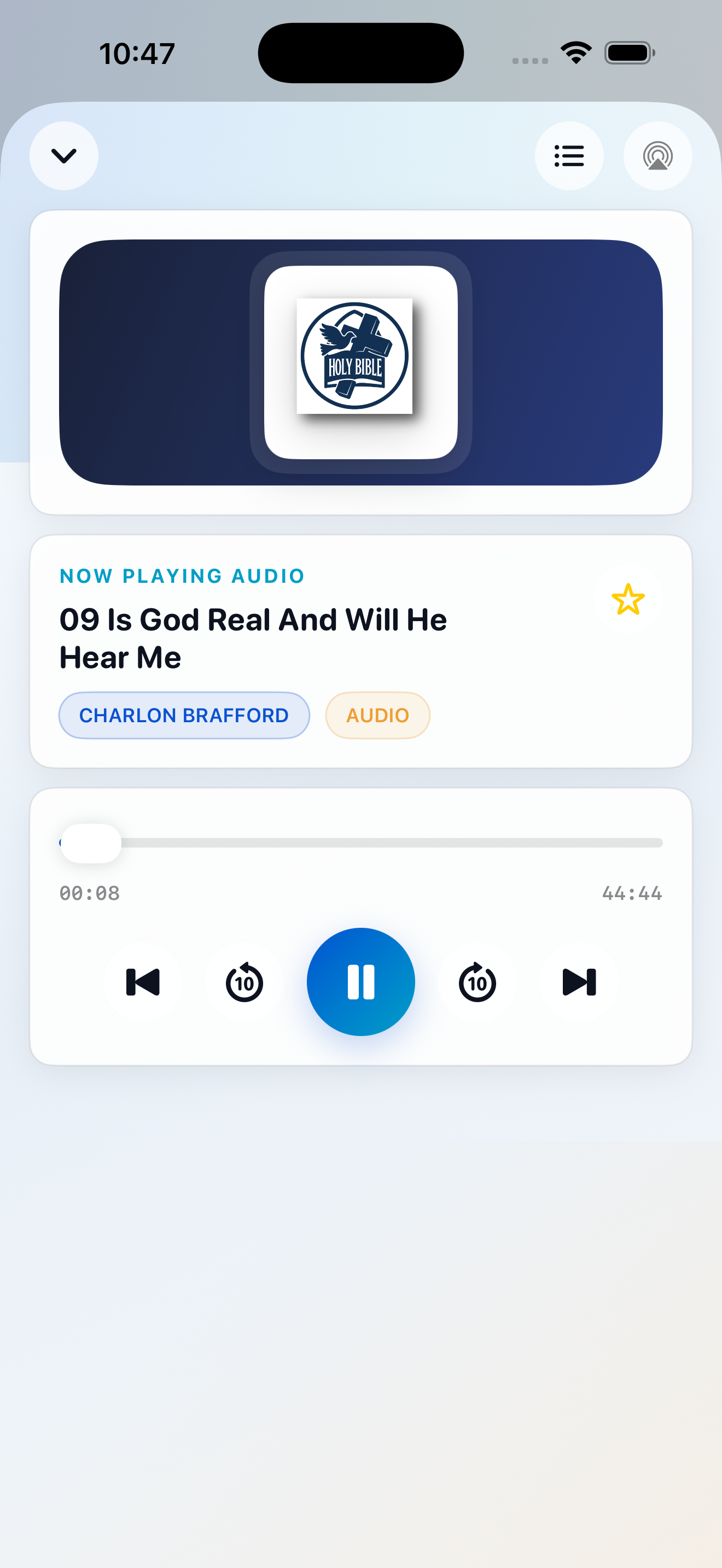
Play, pause, seek, skip 10 seconds, or move to the previous and next item.
Collapse the player and use the mini-player while you browse the app.
Use AirPlay, lock-screen controls, background audio, and compatible CarPlay screens.
Continue Listening holds unfinished programs and their remaining time. The star adds accessible content to Favorites. Closing the mini-player stops the current item and clears that resume selection.
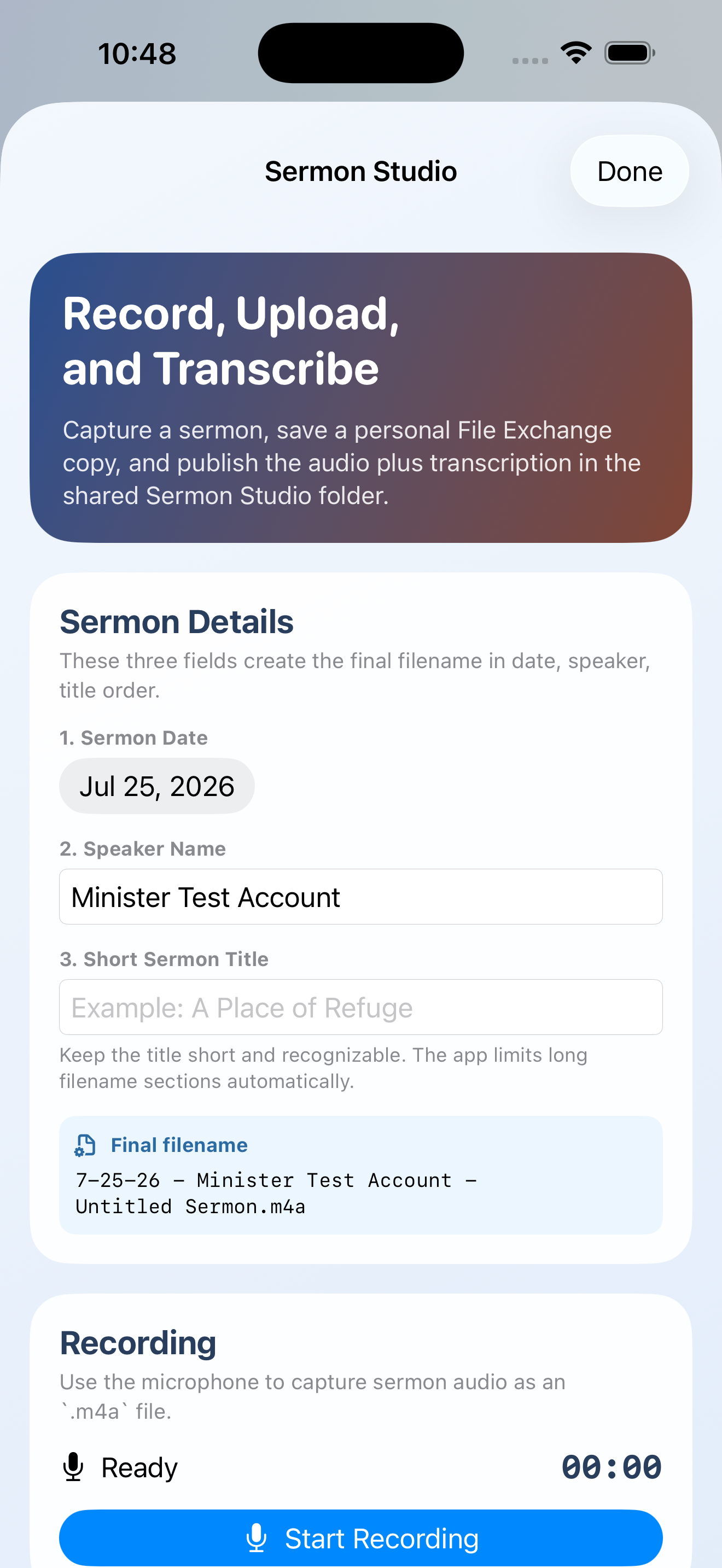
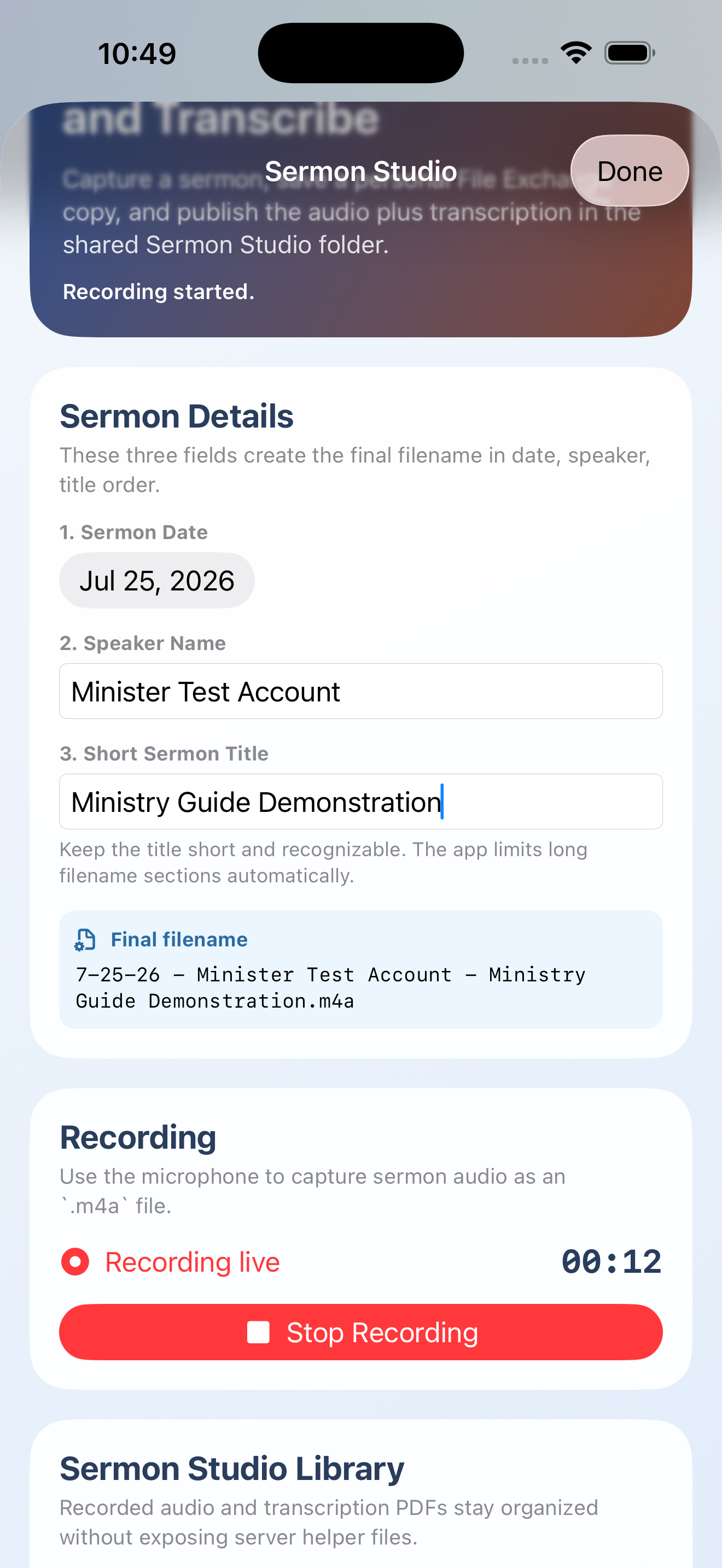
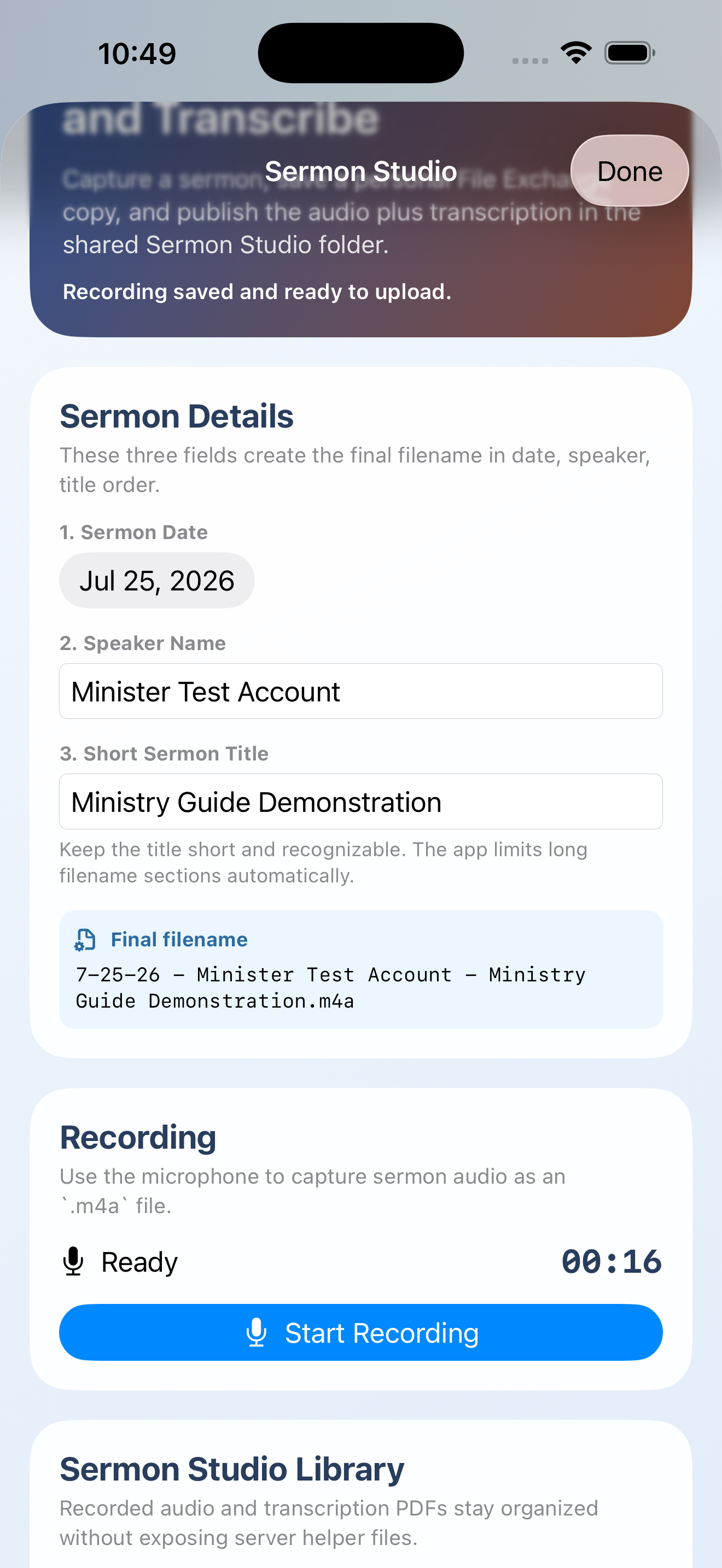
Confirm the uploaded audio opens correctly before permanently deleting the device copy.
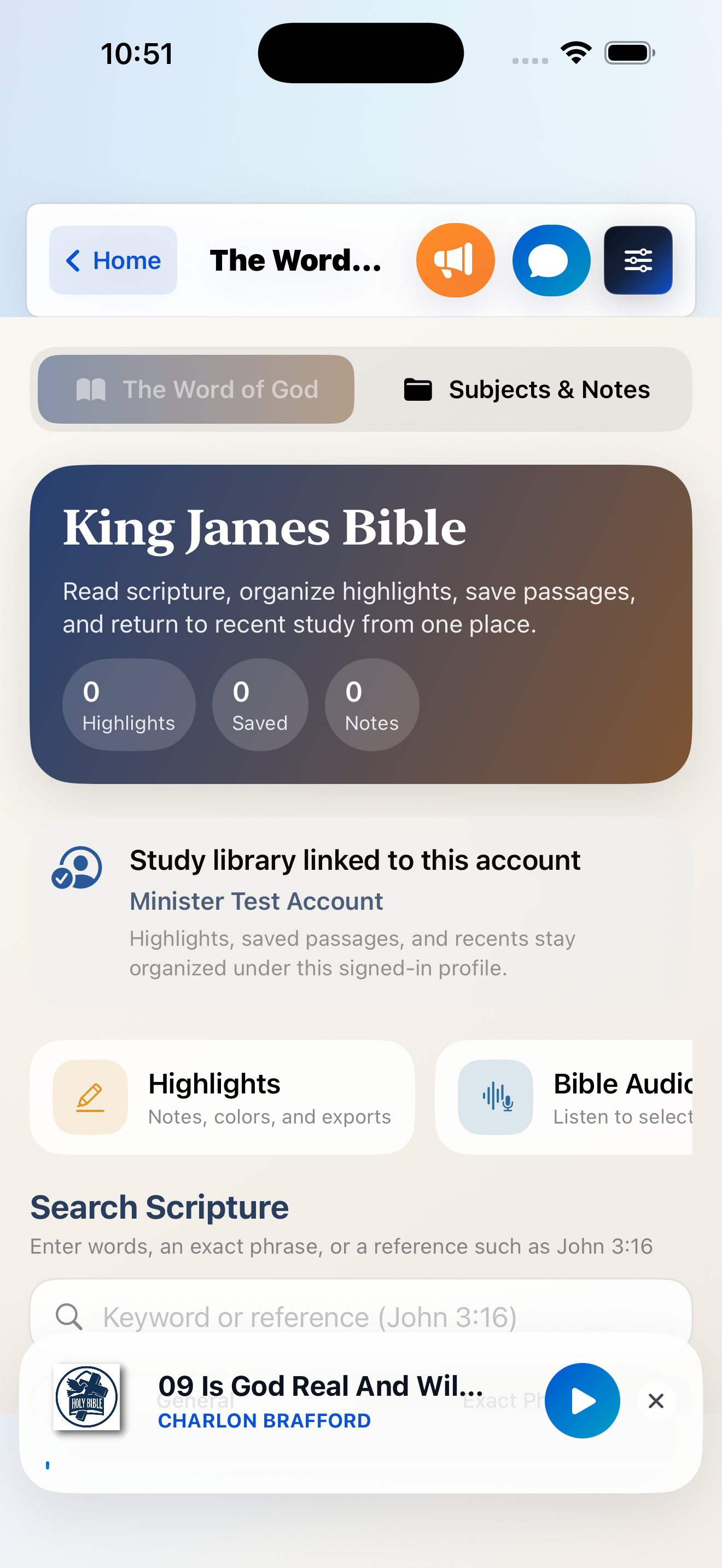
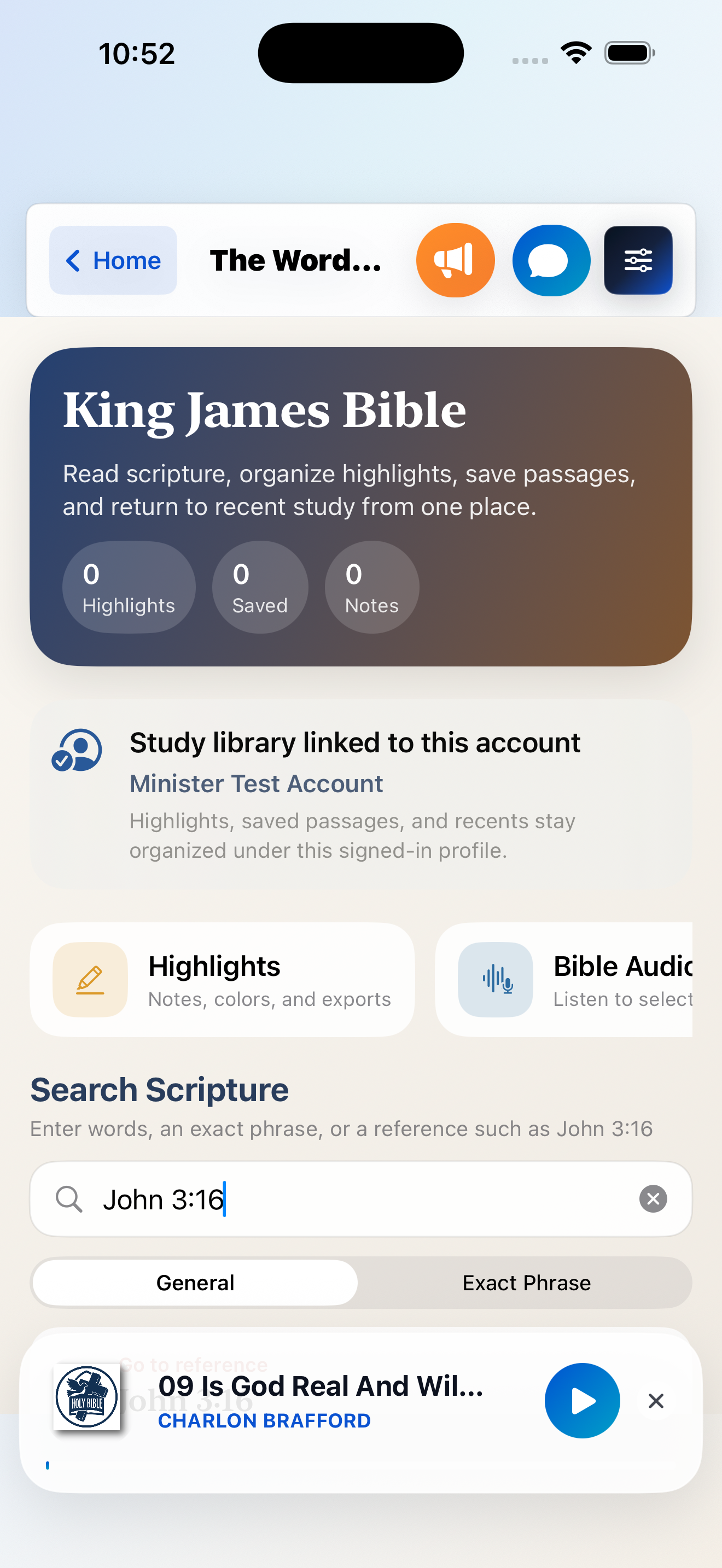
Search a book, word, exact phrase, or reference such as John 3:16.
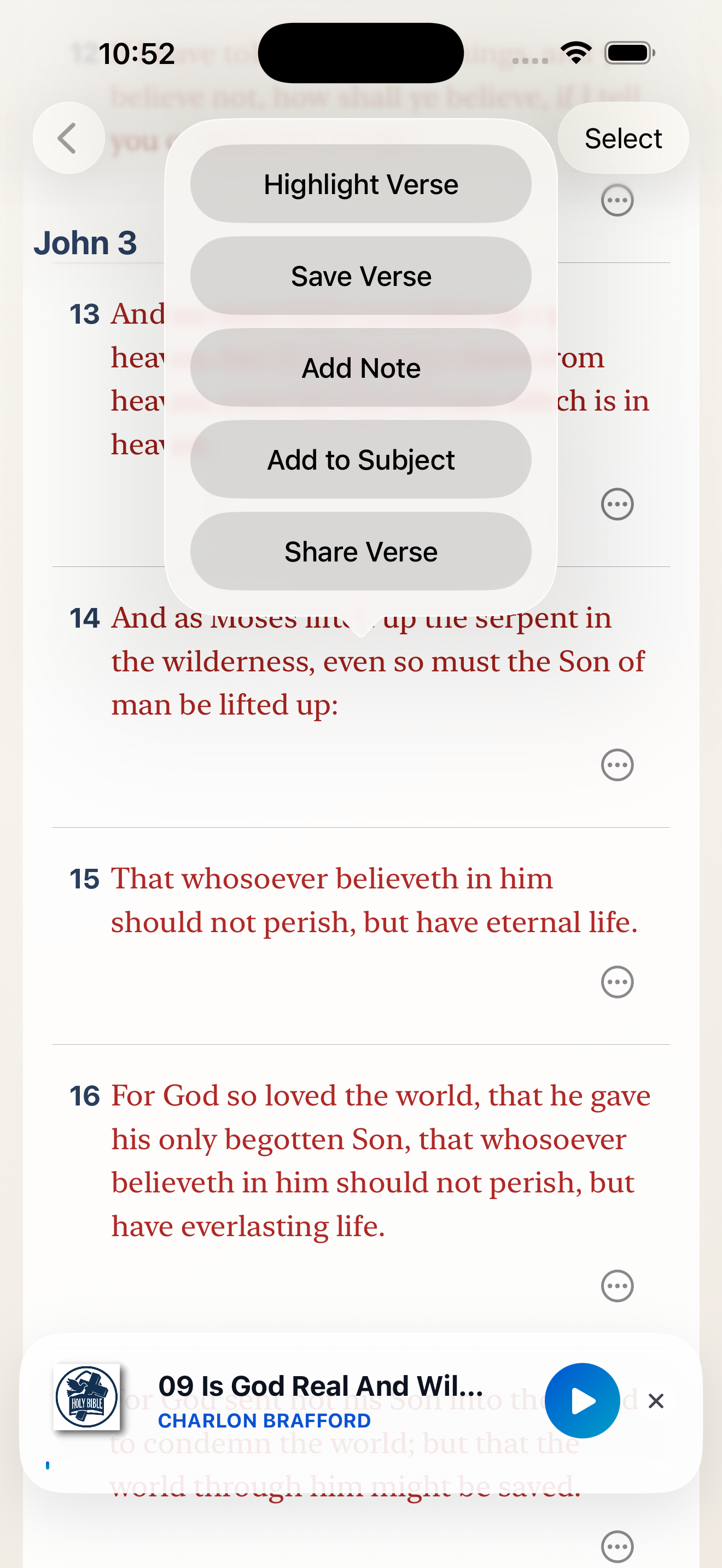
Long-press or use the ellipsis to highlight, save, note, add to a Subject, or share.
Enter Select mode to highlight, annotate, or collect several verses together.
Choose a book and chapter in Bible Audio, then play, pause, stop, or continue.
The KJV text is bundled with the app, making basic Scripture reading available without downloading ministry files.
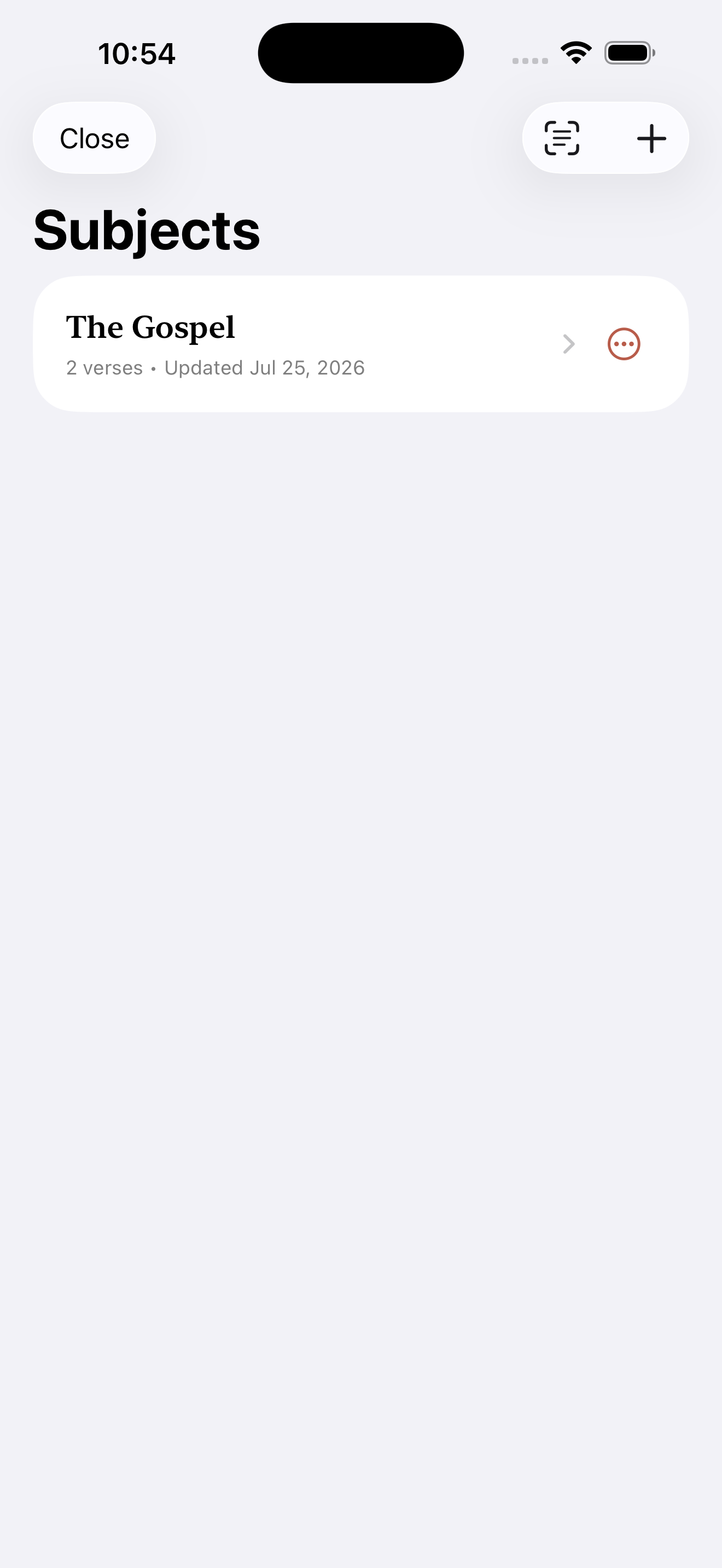
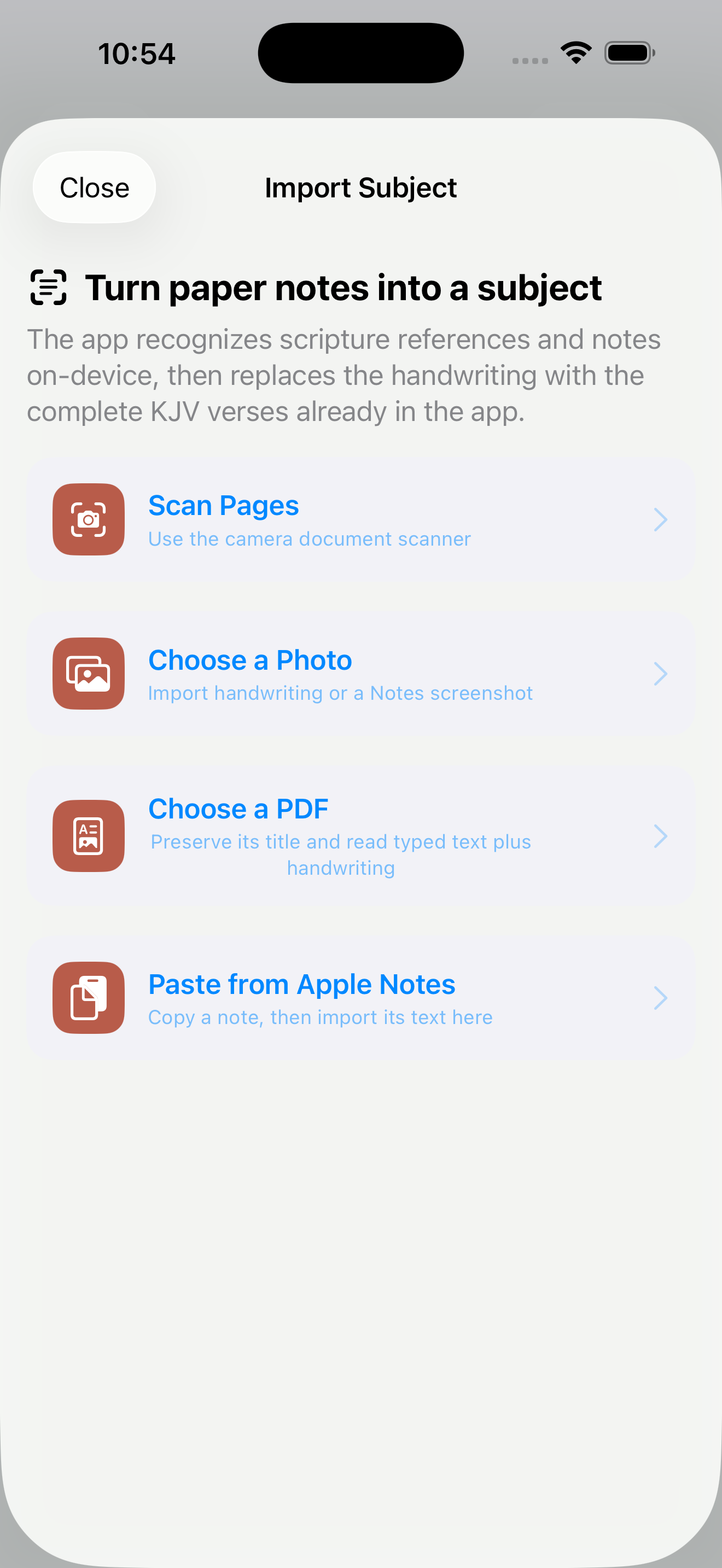
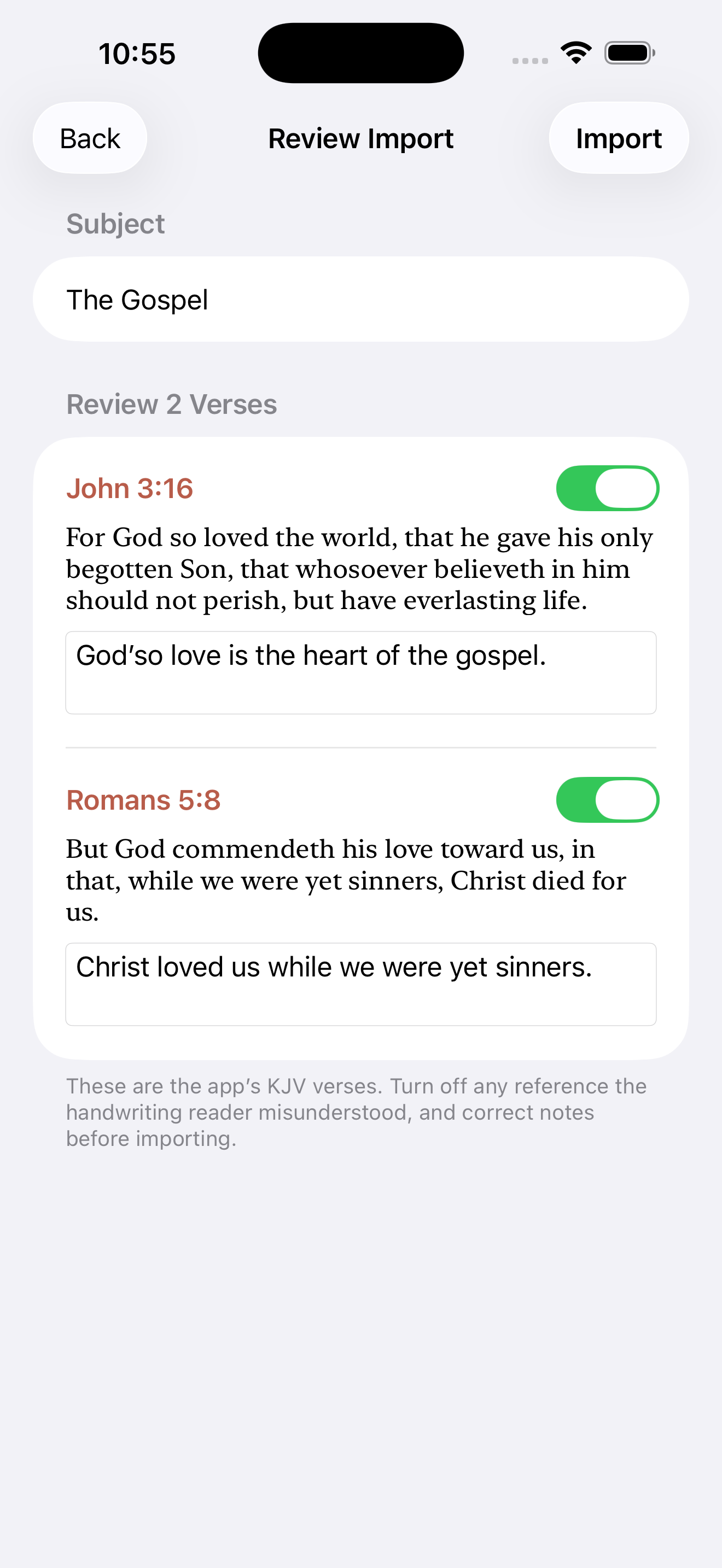
A Subject is a named collection of KJV passages and study notes. Add verses manually, collect selected highlights, or import a paper or digital outline.
Choose a camera scan, photo, PDF, pasted text, or the Apple Notes share action. On-device recognition finds text and handwriting, then matches Scripture references to the bundled KJV.
Handwriting, shadows, page curves, and abbreviations can create an incorrect match.
Highlights can be searched and sorted by Book, Color, or Date. Export selected colors as text or PDF, and use JSON backup before large bulk changes.
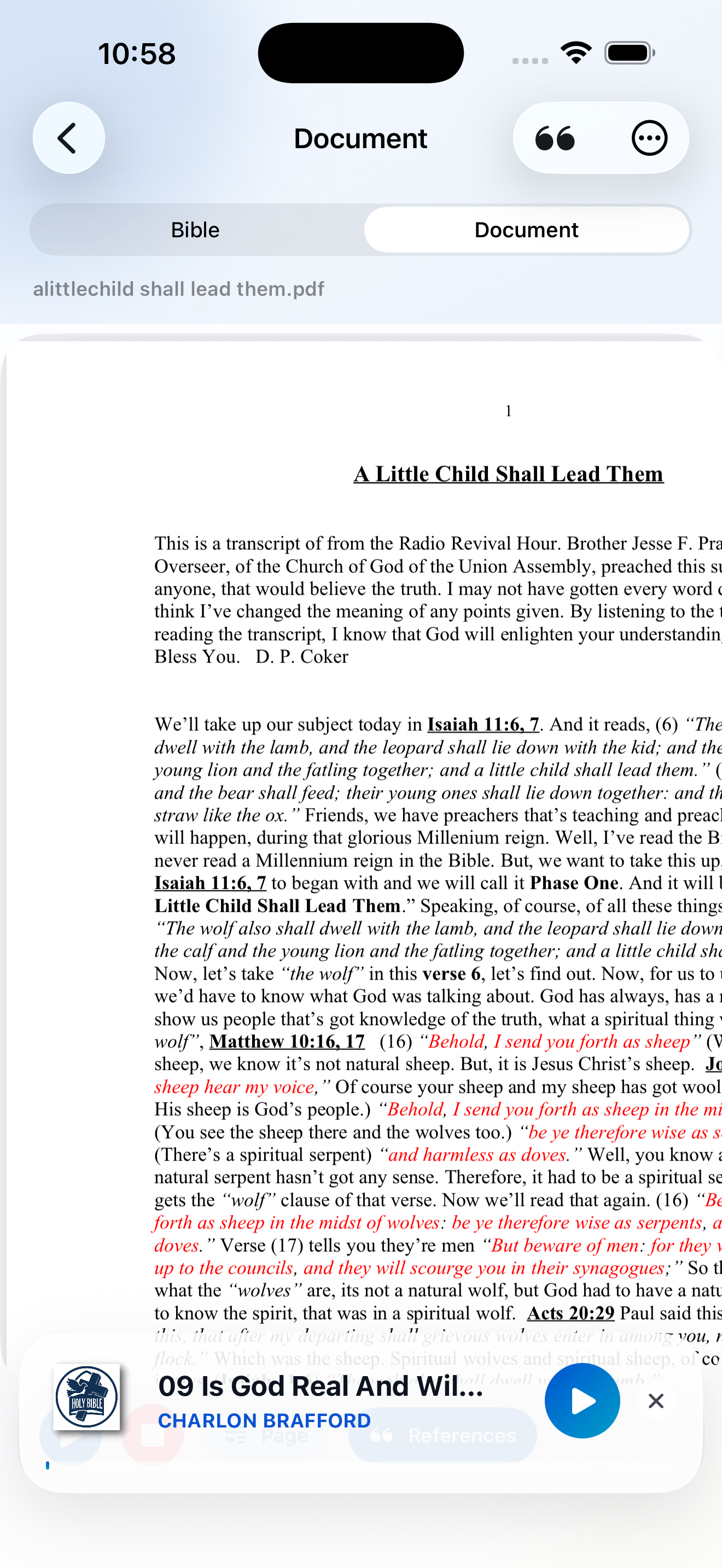
On iPhone, switch between Bible and Document. On iPad, use the larger study layout to keep Scripture close to the document.
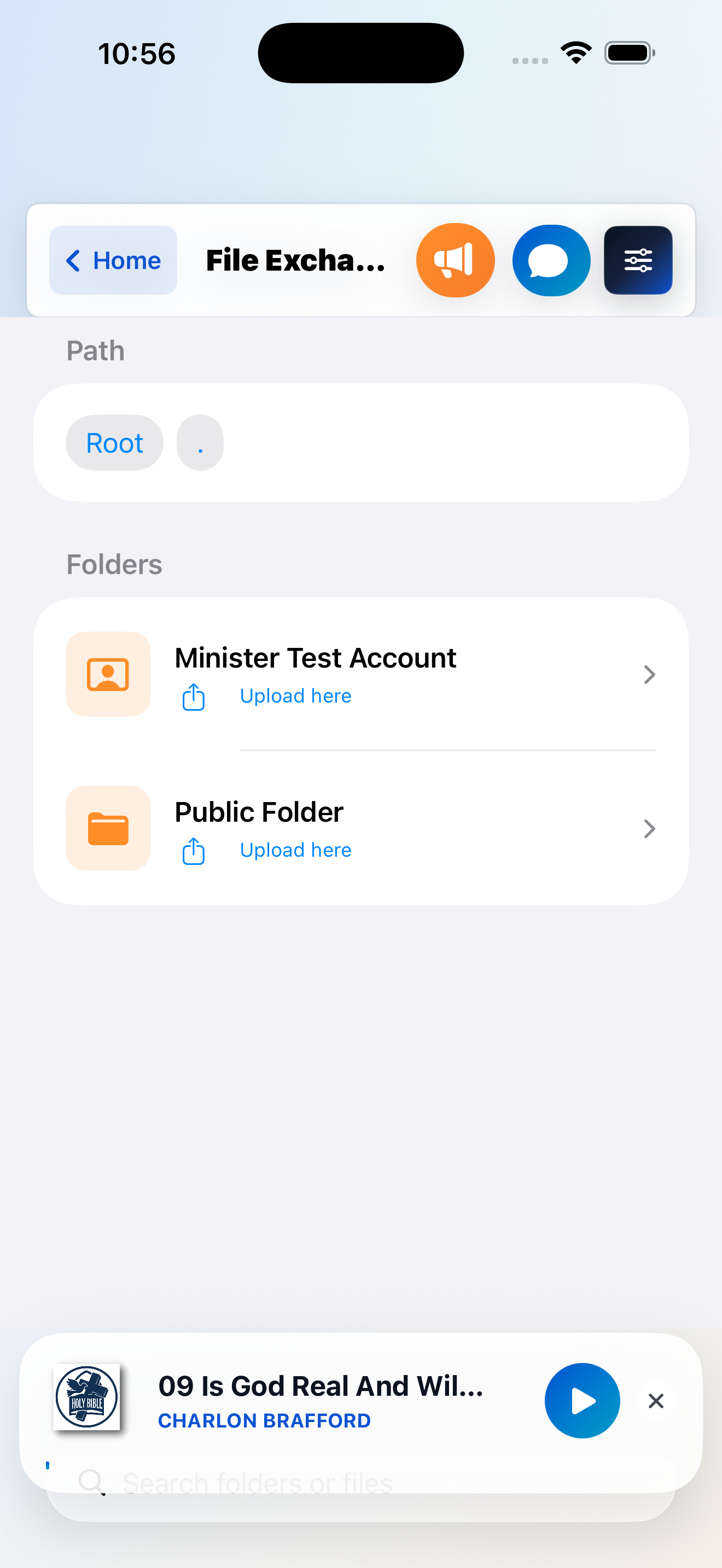
Use My Folder to jump to your personal location. Breadcrumbs and Up One Level help you move through shared folders.
A delete action appears only when the service grants it. Deleting a folder also removes its contents.
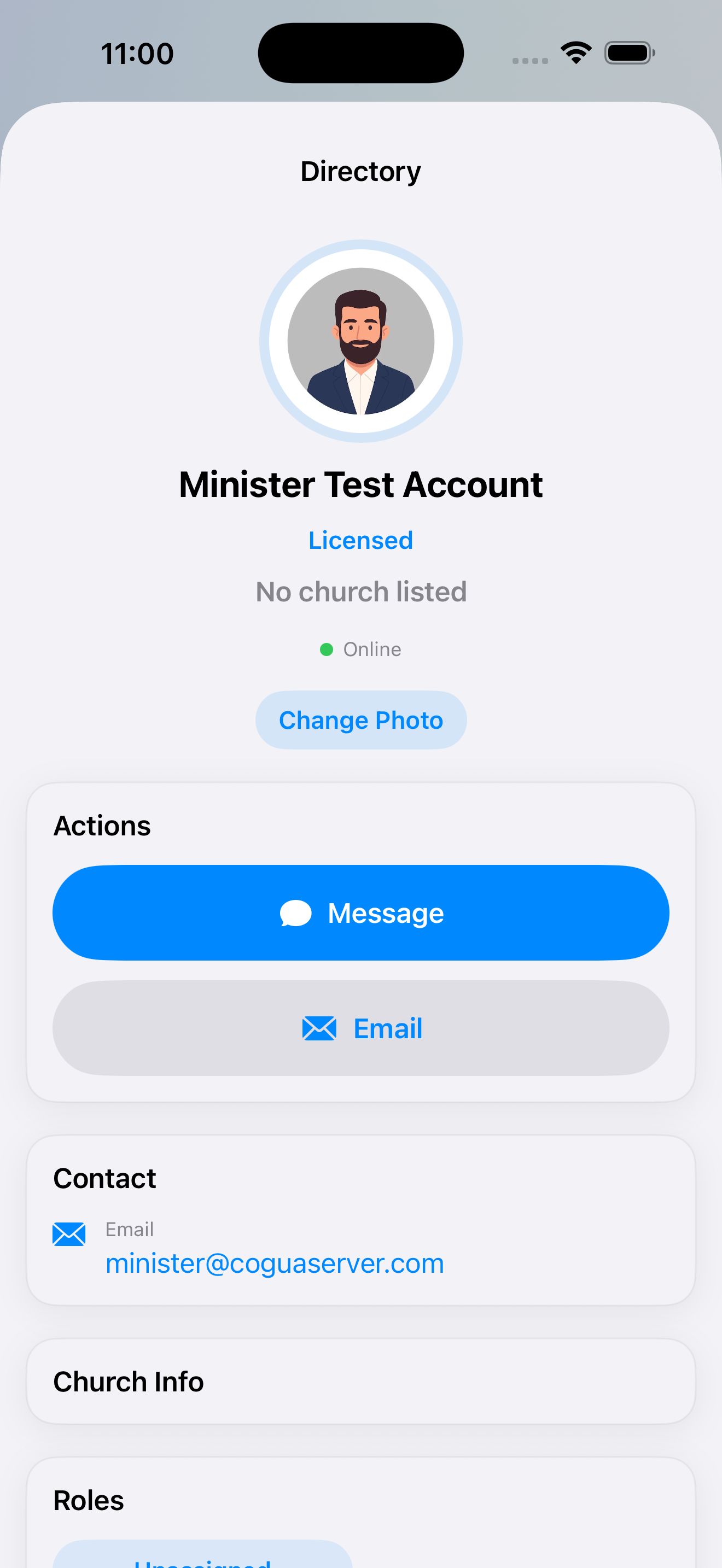
Search name, email, church, city, state, or address. Filter Licensed, On-Trial, or Online Users.
Message, email, or call from a profile. Tap your dashboard photo to change your own image.
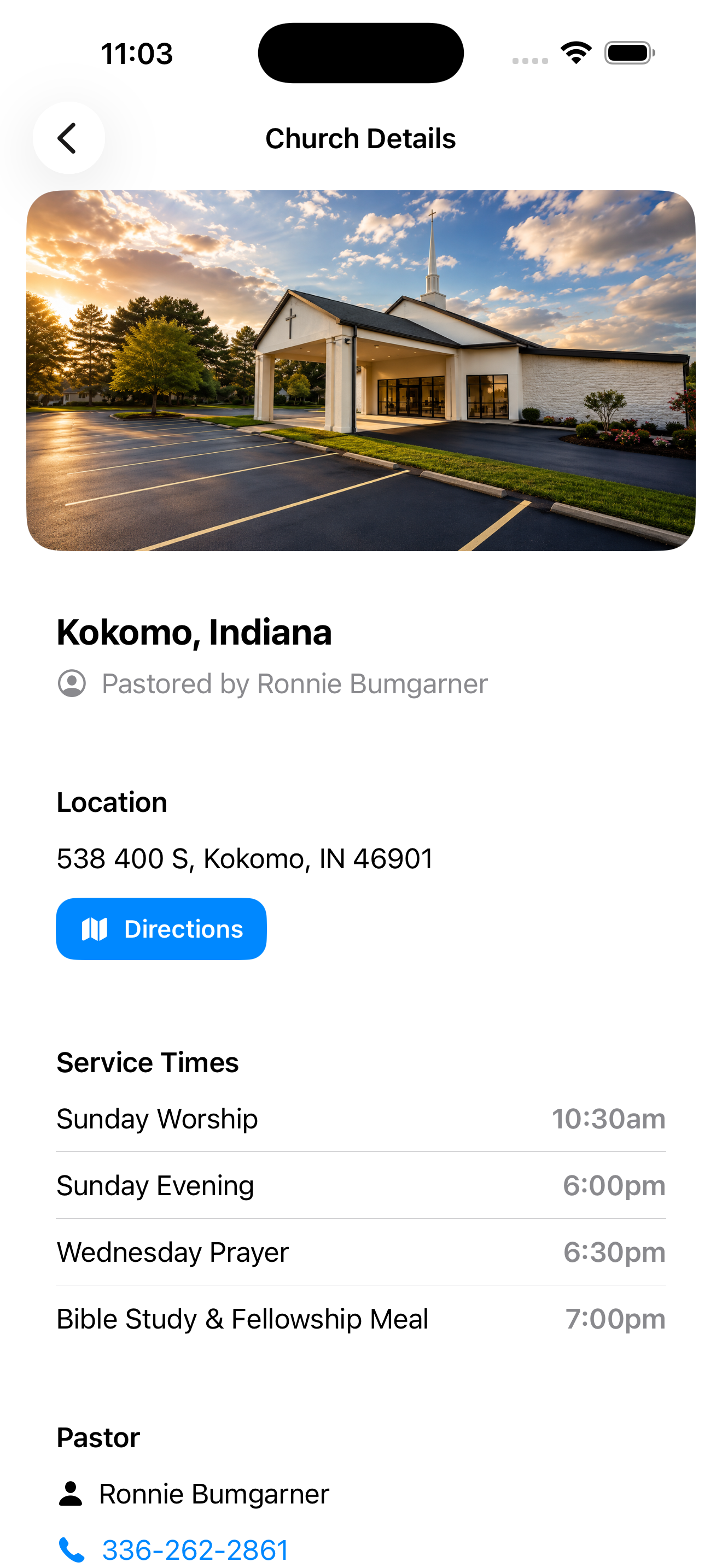
Search church, city, state, pastor, or address and review service details.
Tap the church address or directions action to continue in Apple Maps.
Open Events to review the image, category, date or date range, service times, location, and description. Tap More Info when an event includes an external page, and pull down to refresh after a new gathering is announced.
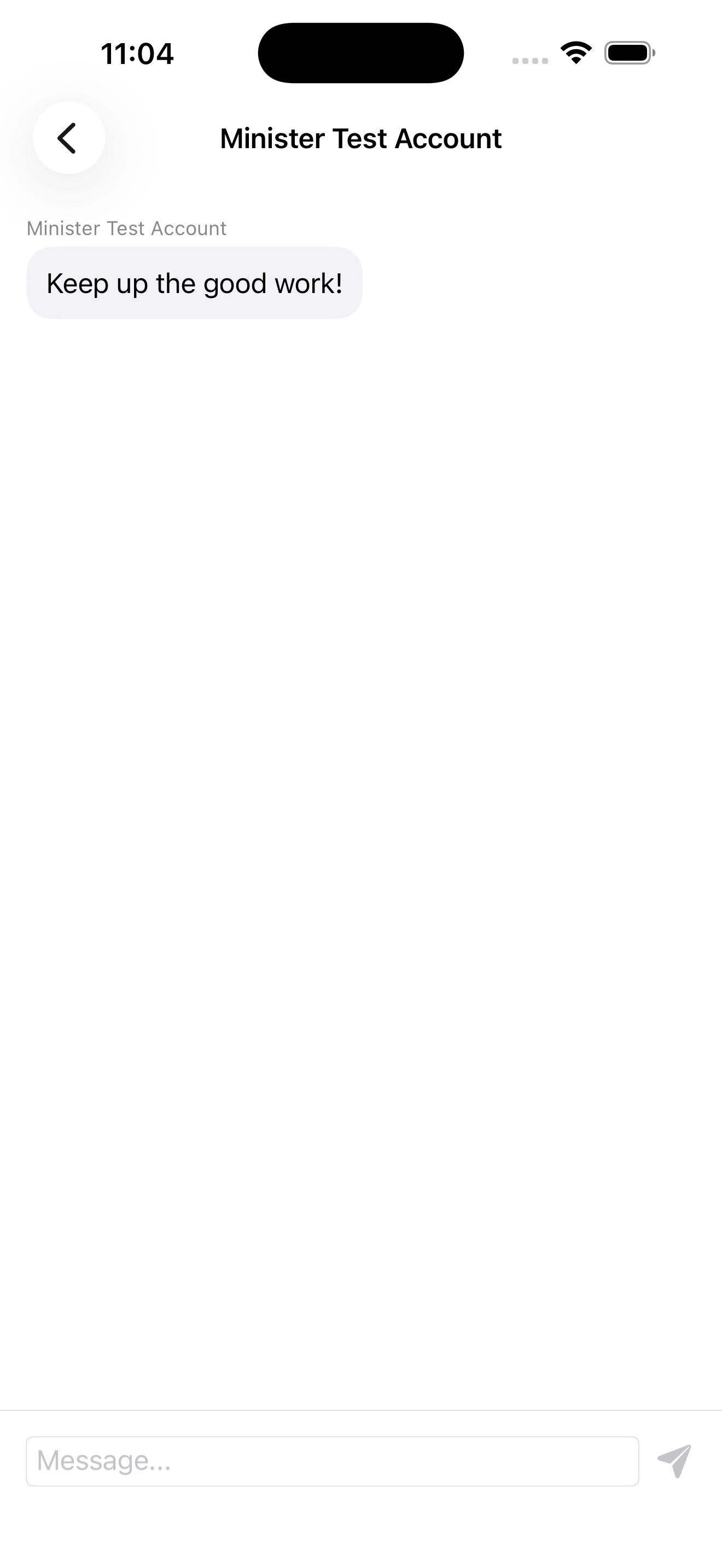
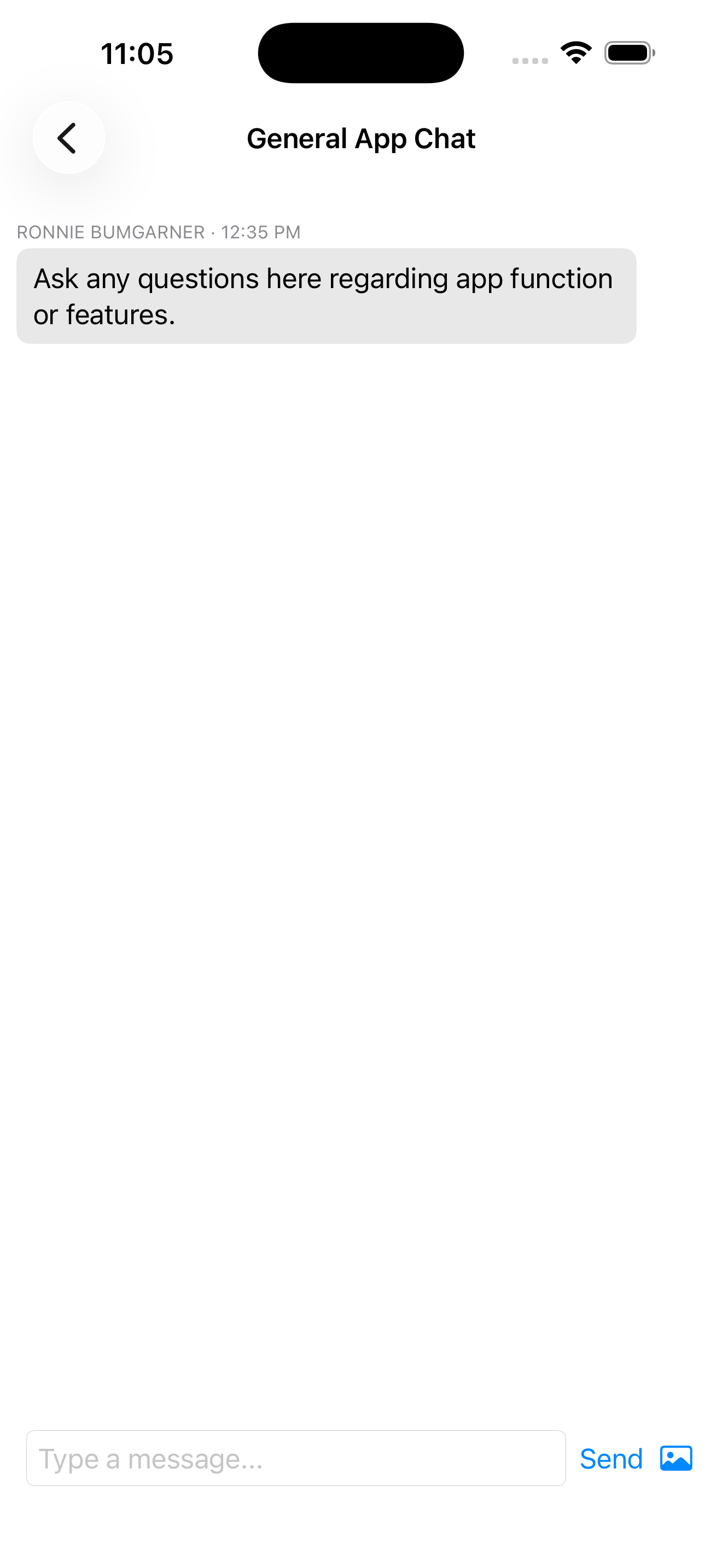
Open General App Chat or Doctrine / Bible Questions. Send text or attach an appropriate photo. Online and last-seen indicators provide general presence information.
Keep confidential counseling, medical, financial, or disciplinary details out of group rooms.
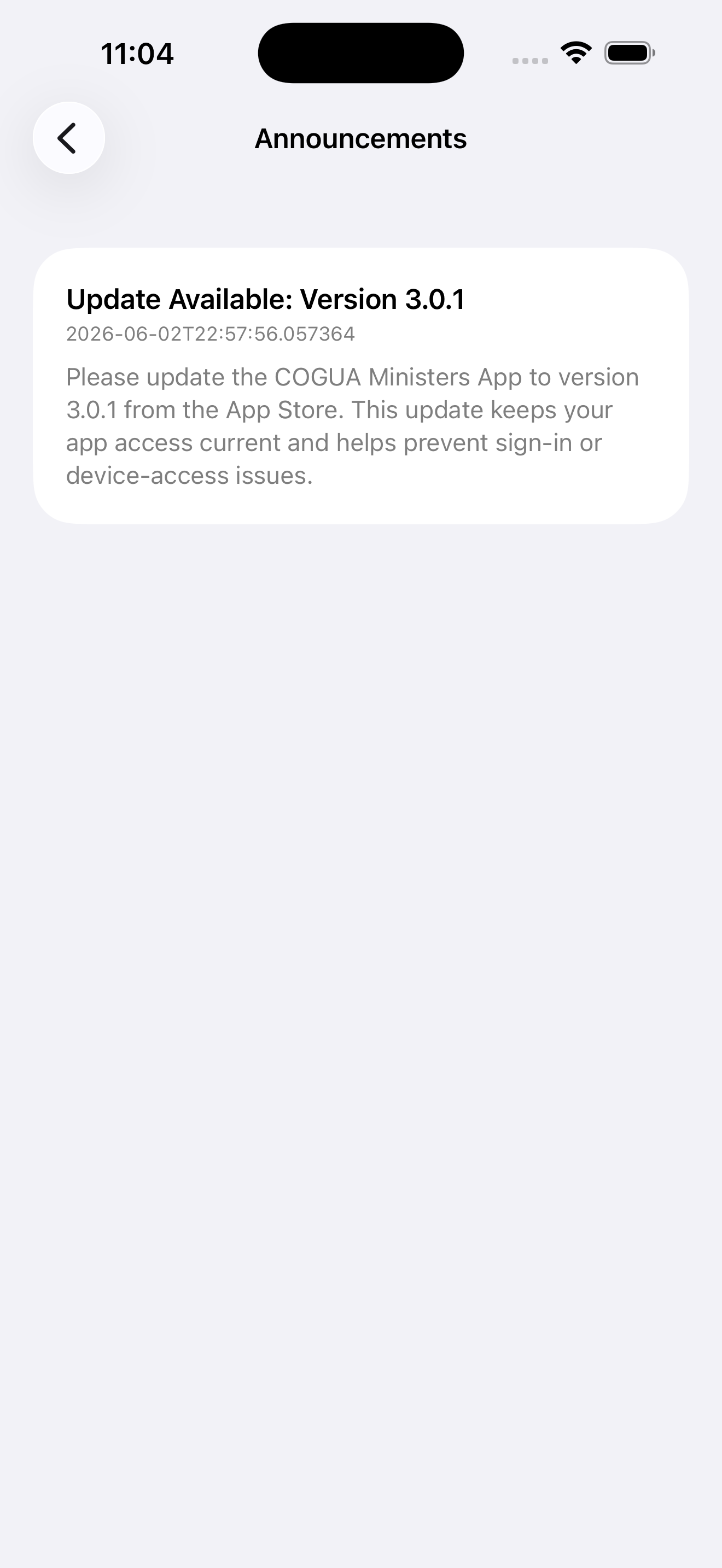
The announcement badge shows unseen notices. Some notices appear as a popup and are marked read after Continue or Close. Important Info opens the current ministry notice and may include an image or donation link.
Depending on available content, CarPlay can show Church Navigation, Songs, Sermons, Special, and Favorites. Choose a church to continue in Apple Maps, or browse the role-approved audio available to your account.
Choose media and enter detailed searches while parked. Use hands-free controls and obey local law.
Open Finance Reports from the dashboard shortcut. Browse and open the available report files as you would in File Exchange. These roles can view the report area but cannot upload into it.
Verify the approved email, retype the password, update the app, change connections, and reopen it.
Pull down to refresh, confirm the correct account, and remember that content can vary by role.
Refresh the folder, check volume and AirPlay, then try another item to isolate the problem.
Use stable Wi-Fi, confirm Upload Here is available, keep the app open, and check storage.
Choose Local Recordings, sort Newest, search date or speaker, and restore hidden items.
Review iOS Notifications and Focus, then reopen the app on a working connection.
Include your name, app email, device model, iOS version, app version, exact message, and a safe screenshot.
Try a shorter word such as “Bible,” “record,” “file,” “message,” or “login.”
Common app workflows
Use these repeatable paths for real preparation, services, study, and travel.
Before the service
Save this checklist on this browser. Return before a service to confirm the device is ready for a long recording and dependable access.
COGUA Ministry App
The COGUA Ministry App includes Bible study, sermon recording, file access, directories, events, announcements, and communication tools.
Search, highlight, annotate, collect, import, and export without losing the passage context.
Capture preached messages, preserve local projects, upload, and request a transcript PDF.
Search accessible audio, video, documents, Favorites, recent listening, and shared files.
Reach ministers, find churches, review events, read notices, and join ministry conversations.
Use the guide with the app
This browser saves your selected role, completed topics, and service checklist.